Безплатна демо сметка
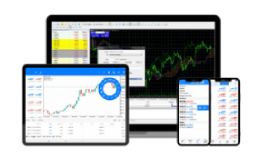
Платформа за търговия с валути, акции, стоки, индекси, криптовалути
-
Подходяща за сделки на марджин с най-търгуваните инструменти на финансовите пазари
-
Най-ниски разходи за сключване на сделка
-
Най-популярната платформа в целия свят, носител на редица награди
-
Разширени статистики за акаунта и тестване на алгоритмични стратегии от ново поколение
Често задавани въпроси
С демо сметката за търговия на БенчМарк можеш да се учиш да сключваш сделки на финансовите пазари в реални пазарни условия и да тестваш платформата за търговия, преди да откриеш реална сметка. Парите в демо сметката са виртуални и на практика не можеш да загубиш реални средства.
Инсталационна версия: Влез в страница „Безплатна демо сметка“. Попълни полетата с твоите име и фамилия, валиден e-mail адрес и телефонен номер. След това избери зеления бутон „Отвори демо сметка“. На екрана ще се визуализират данните за вход в платформата. Избери бутона „Свали платформата за търговия“. След като платформата се инсталира, от отворилия се прозорец избери брокер „BenchMark Finance”. Ще видиш полето "Connect with an existing trade account" (Свържи се със съществуваща сметка), в което трябва да попълниш данните си за вход. Още информация можеш да видиш в пълното ръководство за работа с MetaTrader 5.
Web: Влез в страница „Безплатна демо сметка“. Попълни полетата с твоите име и фамилия, валиден e-mail адрес и телефонен номер. След това избери зеления бутон „Отвори демо сметка“. На екрана ще се визуализират данните за вход в платформата. Избери бутона „Вход в Web версия“. Въведи данните си за демо сметка и избери бутона „Свързване със сметка“.
Android: Влез в страница „Безплатна демо сметка“. Попълни полетата с твоите име и фамилия, валиден e-mail адрес и телефонен номер. След това избери зеления бутон „Отвори демо сметка“. На екрана ще се визуализират данните за вход в платформата. Избери бутона „Свали платформата за търговия“. Ще бъдеш препратен към Google Play Store, откъдето трябва да свалиш и инсталираш платформата. След като отвориш платформата, избери брокер „BenchMark Finance”. Въведи данните си за демо сметка, след което избери бутона за вход в платформата.
iOS: Влез в страница „Безплатна демо сметка“. Попълни полетата с твоите име и фамилия, валиден e-mail адрес и телефонен номер. След това избери зеления бутон „Отвори демо сметка“. На екрана ще се визуализират данните за вход в платформата. Избери бутона „Свали платформата за търговия“. Ще бъдеш препратен към AppStore, откъдето трябва да свалиш и инсталираш платформата. След като отвориш платформата, избери брокер „BenchMark Finance”. Въведи данните си за демо сметка, след което избери бутона за вход в платформата.
Инсталационна версия и Web: Отвори падащо меню „File" (Файл) и избери опцията „Login to Trade account" (Вход в сметка). Ще се появи прозорец, в който трябва да въведеш данните си за вход.
Android: Влез в приложението. Кликни на навигационното меню в горния ляв ъгъл и избери „Manage accounts" (Управление на сметки), след това натисни бутона „+" горе вдясно. Избери брокер „BenchMark Finance". Ще видиш полето „Login to an existing account" (Влез в съществуваща сметка), в което трябва да попълниш данните си за вход.
iOS: Влез в приложението. Отиди в меню „Settings" (Настройки) и избери „New Account" (Нов акаунт), след това избери брокер „BenchMark Finance". Попълни данните си за вход.
Инсталационна версия и Web: В прозорец „Market Watch" (Състояние на пазара) можеш да намериш всички инструменти и техните пазарни котировки. Прозорецът се намира в горната лява част на работното пространство. Ако не виждаш всички инструменти, кликни с десния бутон на мишката в прозорец „Market Watch" (Състояние на пазара) и избери опцията „Show all" (Покажи всички).
Android и iOS: В начален екран ще видиш инструментите за търговия. Ако желаеш да добавиш и направиш видими още инструменти, кликни бутона „+" в горния десен ъгъл.
Инсталационна версия и Web: Избери инструмент (например двойката EUR/USD) от прозорец „Market Watch" (Състояние на пазара). Кликни с десен бутон върху инструмента и от падащото меню избери „Chart Window" (Прозорец на графика).
Android и iOS: Избери инструмент. Натисни върху инструмента и от показалото се меню избери „Chart" (Графика).
Инсталационна версия и Web: Избери инструмент (например EUR/USD) от прозорец „Market Watch" (Състояние на пазара). Кликни с десен бутон върху инструмента и от падащото меню избери „New Order" (Нова поръчка) или натисни „F9" на клавиатурата (за инсталационната версия). Въведи обем на поръчката. В полето „Type" (Вид) избери „Market Execution" (Пазарно изпълнение), ако желаеш поръчката да се изпълни по пазарна цена или „Pending order" (Чакаща поръчка), за да зададеш предварително цена на изпълнение. След това натисни бутон „Buy", за да купиш или бутон „Sell", за да продадеш.
Алтернативно, можеш да сключиш сделка от бутоните за директна търговия. В прозорец „Market Watch" (Състояние на пазара) избери страница „Trading" (Търговия) – това поле е видимо само за инсталационната версия. Въведи количество и кликни върху някой от двата бутона, за да сключиш сделка веднага.
Android и iOS: Избери инструмент, натисни върху инструмента и от показалото се меню избери „New Order" (Нова поръчка) за Android или „Trade" (Търговия) за iOS. За да отвориш нова позиция, първо трябва да запишеш желания от теб обем в лотове. Запомни, че 1.00 лот е равен на 100 000 валутни единици. След това натисни бутон „Buy", за да купиш или бутон „Sell", за да продадеш.
Инсталационна версия и Web: Отворените позиции и чакащите поръчки можеш да видиш в прозорец „Trade" (Търговия), който се намира в най-долната част на работното пространство. За да затвориш позиция, кликни с десен бутон върху нея и избери „Close Position" (Затваряне на позиция) или кликни два пъти върху позицията. Ще се отвори допълнителен прозорец. Избери жълтия бутон, за да затвориш позицията.
Android и iOS: Отворените позиции в демо сметката за търговия можеш да видиш в раздел „Trade" (Търговия). За да затвориш дадена сделка, трябва да натиснеш продължително върху позицията си. Ще се появи прозорец, в който трябва да избереш опцията „Close Position" (Затваряне на позиция), след което трябва да потвърдиш като натиснеш „Close" (Затвори).
Препоръчваме ти платформата MetaTrader 5, която е от по-ново поколение и в която могат да се търгуват всички класове инструменти. В това число акции, криптовалути, форекс, метали, суровини и други. Допълнително, всички нововъведения и подобрения ще се правят единствено за MetaTrader 5.
Ако имаш други въпроси, не се колебай да се свържеш с нас денонощно на телефон +359 2 962 57 95 или да ни пишеш в нашия онлайн чат. Също така, можеш да заявиш безплатна консултация от този линк.
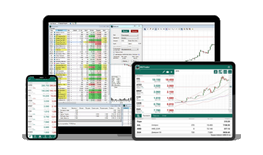
Платформа за търговия с български и международни акции на БФБ
-
Подходяща за търговия с най-популярните български и чуждестранни акции на Българска фондова борса
-
Най-ниски разходи за поддържане на инвестицията за дълги периоди
-
Оценена от професионалисти и начинаещи
-
Достъп до акции на близо 400 топ световни компании, ETF-и и крипто инструменти
Често задавани въпроси
Всяка акция е дял от компания и дори с 1 акция ставаш неин съсобственик, като по този начин можеш да печелиш от покачването на тяхната цена. Като акционер можеш да печелиш също и от редовен доход под формата на дивидент, ако компанията реши да разпределя такъв.
Инвестирането в акции е по-рисково в сравнение с алтернативи като недвижимо имущество и банкови депозити, но в дългосрочен план е една от инвестициите с най-висока доходност.
Можеш да инвестираш в акции на компании и с по-малки суми. В БенчМарк няма изисквания за минимален депозит на пари по сметката за търговия.
Инсталационна версия: Влез в страница „Безплатна демо сметка“. Избери опция „BG Trader". Попълни полетата с твоите име и фамилия, валиден e-mail адрес и телефонен номер. След това избери зеления бутон „Отвори демо сметка“. На екрана ще се визуализират данните за вход в платформата. Избери бутона „Свали платформата за търговия“. След като платформата се инсталира, въведи данните си за демо сметка в отворилия се прозорец и избери бутона „Потвърди“.
Web: Влез в страница „Безплатна демо сметка“. Избери опция „BG Trader". Попълни полетата с твоите име и фамилия, валиден e-mail адрес и телефонен номер. След това избери зеления бутон „Отвори демо сметка“. На екрана ще се визуализират данните за вход в платформата. Избери бутона „Вход в Web версия“. Въведи данните си за демо сметка в поле „Demo Account“ и избери бутона „Log-in“.
Android: Влез в страница „Безплатна демо сметка“. Избери опция „BG Trader". Попълни полетата с твоите име и фамилия, валиден e-mail адрес и телефонен номер. След това избери зеления бутон „Отвори демо сметка“. На екрана ще се визуализират данните за вход в платформата. Избери бутона „Свали платформата за търговия“. Ще бъдеш препратен към Google Play Store, откъдето трябва да свалиш и инсталираш платформата. След като платформата се инсталира въведи данните си за демо сметка в отворилия се прозорец и избери бутона „Вход“.
iOS: Влез в страница „Безплатна демо сметка“. Избери опция „BG Trader". Попълни полетата с твоите име и фамилия, валиден e-mail адрес и телефонен номер. След това избери зеления бутон „Отвори демо сметка“. На екрана ще се визуализират данните за вход в платформата. Избери бутона „Свали платформата за търговия“. Ще бъдеш препратен към AppStore, откъдето трябва да свалиш и инсталираш платформата. След като платформата се инсталира въведи данните си за демо сметка в отворилия се прозорец и избери бутона „Вход“.
За да инвестираш в акции на Българска фондова борса, трябва да подпишеш договор за търговия с БенчМарк чрез платформата за търговия BG Trader. Можеш да подпишеш договор онлайн или да дойдеш в нашия офис на адрес гр. София 1407, бул. „Черни връх“ 32, вх. А.
След това депозираш определена от теб сума в твоята сметка за търговия. Чрез платформата BG Trader получаваш директен достъп до пазара - информация за текущите цени на акциите, графики с движението на цените във времето, прозорци за подаване на поръчка за покупка и продажба.
БенчМарк е водещ инвестиционен посредник на българския капиталов пазар. Дружеството получава ежегодно награди от Българска фондова борса в различни нейни категории.
Ниски разходи. Търговията се предлага при ниски комисиони от 0.7%. Няма такси за откриване или такси за поддръжка на сметката за търговия. Няма такси за използване на платформата BG Trader. Няма такси нито при депозит на средства, нито при теглене на средства, без значение дали клиентът използва банка, банкова карта или касата на БенчМарк.
Сигурност. Акциите на клиентите се съхраняват надеждно, а паричните средства са гарантирани от Фонда за компенсиране на инвеститорите. БенчМарк е лицензиран от Комисия за финансов надзор инвестиционен посредник от 2003 г.
Бързо внасяне и теглене. Вноските и тегленията на клиентите се обработват максимално бързо, най-често в рамките на работния ден. Можеш да използваш офиса на дружеството, но можеш и да направиш всичко онлайн.
Собствена платформа BG Trader. При разработването ѝ екипът на БенчМарк използва най-добрите практики и технически решения, утвърдени от световните лидери в борсовото посредничество. Платформата BG Trader е лесна за работа и осигурява бърз достъп до борсата през всички видове устройства и операционни системи.
Денонощно клиентско обслужване. Нашият екип от специалисти е на разположение 24 часа в денонощието, 5 дни в седмицата. Лицензираните брокери на БенчМарк са с дългогодишен опит на БФБ.
Анализи и обучения. Клиентите на БенчМарк получават редовни пазарни анализи за определени акции и за най-важното от света на финансовите пазари. БенчМарк предоставя също на своите клиенти практически обучения и индивидуални консултации.
Можеш да подпишеш договор за платформата BG Trader на БенчМарк изцяло онлайн или да дойдеш в нашия офис на адрес гр. София 1407, бул. „Черни връх“ 32, вх. А.
Можеш да свалиш пълното ръководство за работа с платформата BG Trader в PDF формат от следния линк.
Имам друг въпрос…
Ако имаш други въпроси, не се колебай да се свържеш с нас денонощно на телефон +359 2 962 57 95 или да ни пишеш в нашия онлайн чат. Също така, можеш да заявиш безплатна консултация от този линк.
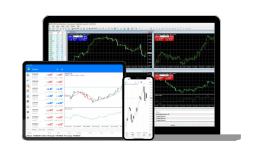
Платформа за търговия с валути, акции, стоки, борсови индекси
-
Подходяща за сделки на марджин с най-търгуваните инструменти на финансовите пазари без криптовалути
-
Олекотена мобилна, уеб и инсталационна версии на платформата за търговия
-
Утвърдена платформа, носител на редица награди
-
Изборът на опитни и начинаещи трейдъри
Често задавани въпроси
С демо сметката за търговия на БенчМарк можеш да се учиш да сключваш сделки на финансовите пазари в реални пазарни условия и да тестваш платформата за търговия, преди да откриеш реална сметка. Парите в демо сметката са виртуални и на практика не можеш да загубиш реални средства.
Инсталационна версия: Влез в страница „Безплатна демо сметка“. Избери опция „MetaTrader 4". Попълни полетата с твоите име и фамилия, валиден e-mail адрес и телефонен номер. След това избери зеления бутон „Отвори демо сметка“. На екрана ще се визуализират данните за вход в платформата. Избери бутона „Свали платформата за търговия“. След като платформата се инсталира, избери сървър „BenchMark-Demo”, избери опцията „Existing trade account“ и въведи данните си за демо сметка. Още информация можеш да видиш в пълното ръководство за работа с MetaTrader 4.
Web: Влез в страница „Безплатна демо сметка“. Избери опция „MetaTrader 4". Попълни полетата с твоите име и фамилия, валиден e-mail адрес и телефонен номер. След това избери зеления бутон „Отвори демо сметка“. На екрана ще се визуализират данните за вход в платформата. Избери бутона „Вход в Web версия“. Въведи данните си за демо сметка и избери сървър „BenchMark-Demo”. Посочи бутон „ОК".
Android: Влез в страница „Безплатна демо сметка“. Избери опция „MetaTrader 4". Попълни полетата с твоите име и фамилия, валиден e-mail адрес и телефонен номер. След това избери зеления бутон „Отвори демо сметка“. На екрана ще се визуализират данните за вход в платформата. Избери бутона „Свали платформата за търговия“. Ще бъдеш препратен към Google Play Store, откъдето трябва да свалиш и инсталираш платформата. След като платформата се инсталира, избери бутон „Отвори демо сметка". Вече си автоматично свързан към твоя демо акаунт.
iOS: Влез в страница „Безплатна демо сметка“. Избери опция „MetaTrader 4". Попълни полетата с твоите име и фамилия, валиден e-mail адрес и телефонен номер. След това избери зеления бутон „Отвори демо сметка“. На екрана ще се визуализират данните за вход в платформата. Избери бутона „Свали платформата за търговия“. Ще бъдеш препратен към App Store, откъдето трябва да свалиш и инсталираш платформата. След като платформата се инсталира, избери бутон „Отвори демо сметка". Вече си автоматично свързан към твоя демо акаунт.
Инсталационна версия и Web: Отвори падащо меню „File" (Файл) и избери опцията „Login to Trade account" (Вход в сметка). Ще се появи прозорец, в който трябва да въведеш твоето потребителско име и парола.
Android: Влез в приложението. Кликни на навигационното меню в горния ляв ъгъл и избери „Manage accounts" (Управление на сметки), след това натисни бутона „+" горе вдясно. Избери полето „Login to an existing account" (Влез в съществуваща сметка), след това „BenchMark-Demo". Попълни данните си за вход.
iOS: Влез в приложението. Отиди в меню „Settings" (Настройки) и избери „New Account" (Нов акаунт). Избери полето „Login to an existing account" (Влез в съществуваща сметка), след това „BenchMark-Demo". Попълни данните си за вход.
Инсталационна версия и Web: В прозорец „Market Watch" (Състояние на пазара) можеш да намериш всички инструменти и техните пазарни котировки. Прозорецът се намира в горната лява част на работното пространство. Ако не виждаш всички инструменти, кликни с десния бутон на мишката в прозорец „Market Watch" (Състояние на пазара) и избери опцията „Show all" (Покажи всички).
Android и iOS: В начален екран ще видиш инструментите за търговия. Ако желаеш да добавиш и направиш видими още инструменти, кликни бутона „+" в горния десен ъгъл.
Инсталационна версия и Web: Избери инструмент (например двойката EUR/USD) от прозорец „Market Watch" (Състояние на пазара). Кликни с десен бутон върху инструмента и от падащото меню изберете „Chart Window" (Прозорец на графика).
Android и iOS: Избери инструмент. Натисни върху инструмента и от показалото се меню избери „Chart" (Графика).
Инсталационна версия и Web: Избери инструмент (например EUR/USD) от прозорец „Market Watch" (Състояние на пазара). Кликни с десен бутон върху инструмента и от падащото меню изберете „New Order" (Нова поръчка) или натиснете „F9" на клавиатурата (за инсталационната версия). Въведи обем на поръчката. В полето „Type" (Вид) избери „Market Execution" (Пазарно изпълнение), ако желаеш поръчката да се изпълни по пазарна цена или „Pending order" (Чакаща поръчка), за да зададеш предварително цена на изпълнение. След това натисни бутон „Buy", за да купиш или бутон „Sell", за да продадеш.
Алтернативно, можеш да сключиш сделка от бутоните за директна търговия. В прозорец „Market Watch" (Състояние на пазара) избери страница „Trading" (Търговия) – това поле е видимо само за инсталационната версия. Въведи количество и кликни върху някой от двата бутона, за да сключиш сделка веднага.
Android и iOS: Избери инструмент, натисни върху инструмента и от показалото се меню избери „New Order" (Нова поръчка) за Android или „Trade" (Търговия) за iOS. За да отвориш нова позиция, първо трябва да запишеш желания от теб обем в лотове. Запомни, че 1.00 лот е равен на 100 000 валутни единици. След това натисни бутон „Buy", за да купиш или бутон „Sell", за да продадеш.
Инсталационна версия и Web: Отворените позиции и чакащите поръчки можеш да видиш в прозорец „Trade" (Търговия), който се намира в най-долната част на работното пространство. За да затвориш позиция, кликнеш с десен бутон върху нея и избери „Close Position" (Затваряне на позиция) или кликни два пъти върху позицията. Ще се отвори допълнителен прозорец. Избери жълтия бутон, за да затвориш позицията.
Android и iOS: Отворените позиции в демо сметката за търговия можеш да видите в раздел „Trade" (Търговия). За да затвориш дадена сделка, трябва да натиснеш продължително върху позицията си. Ще се появи прозорец, в който трябва да избереш опцията „Close Position" (Затваряне на позиция), след което трябва да потвърдиш като натиснеш „Close" (Затвори).
Препоръчваме ти платформата MetaTrader 5, която е от по-ново поколение и в която могат да се търгуват всички класове инструменти. В това число акции, криптовалути, форекс, метали, суровини и други. Допълнително, всички нововъведения и подобрения ще се правят единствено за MetaTrader 5.
Ако имаш други въпроси, не се колебай да се свържеш с нас денонощно на телефон +359 2 962 57 95 или да ни пишеш в нашия онлайн чат. Също така, можеш да заявиш безплатна консултация от този линк.
Започни да търгуваш в 4 лесни стъпки
1
Избери
Избери желаната от теб платформа за търговия
2
Попълни
Следвай стъпките и попълни нужната информация
3
Депозирай
Депозирай средства в акаунта си без такси за внос
4
Търгувай
Започни да търгуваш на световните пазари
Демо сметка е модул от продукта “Безплатно обучение за търговия на финансовите пазари”, включващ също семинари, курсове, състезания, консултации, обучителни материали, електронни книги и друга информация с образователна цел. С откриването на демо сметка вие се регистрирате за продукта и ще получавате информация за всички негови модули по имейл и/или телефон въз основа на легитимния интерес за повишаване на знанията и уменията ви, с оглед възможността да станете реален клиент. Използването на продукта не е обвързано със задължение за откриване на реална сметка или закупуване на инвестиционна услуга. Запознайте се с политиката ни за поверителност.
